Discover the full capabilities of our macOS VPN including MAC address spoofing, per-app routing, and seamless Keychain integration.
Getting started with a VPN is quick and simple.
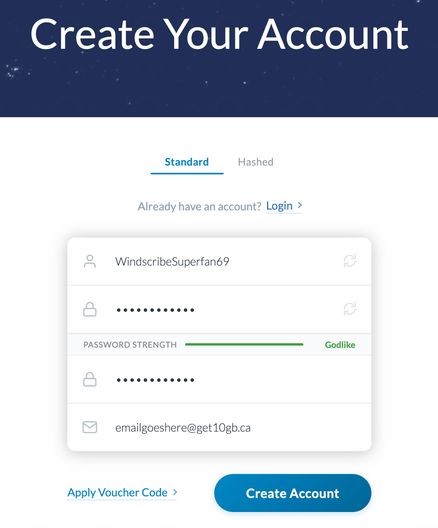
- First, sign up for an account on our website using this link: https://windscribe.com/signup. Providing an email address is optional but if you add and confirm your email, you will get 10GB of monthly VPN data for free as opposed to the 2GB without an email.
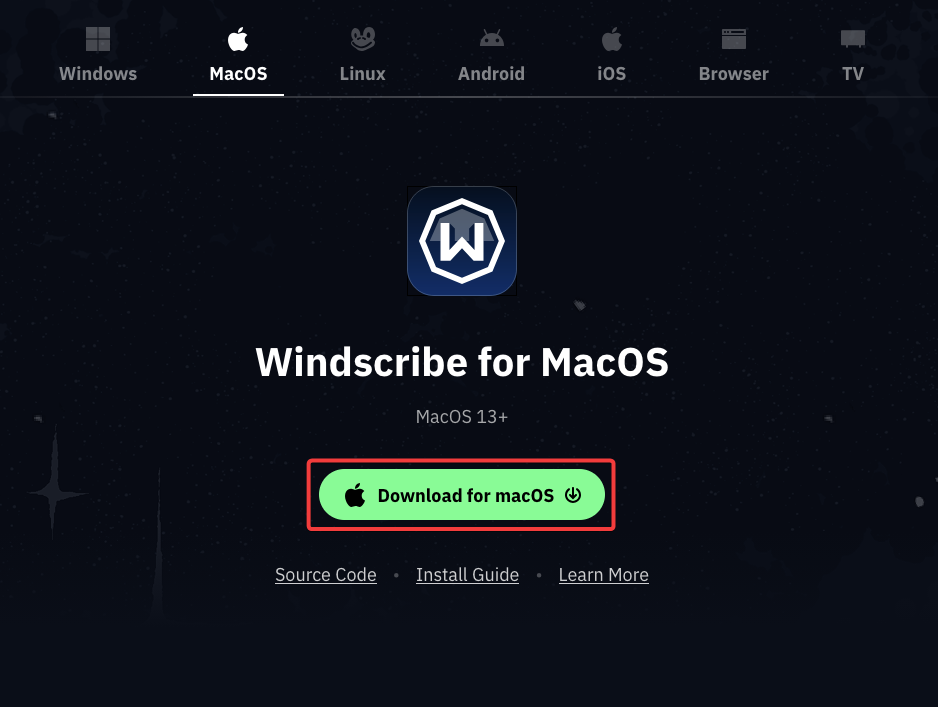
- Once you have your Windscribe account set up, download the Windscribe desktop application from our downloads page: https://windscribe.com/download
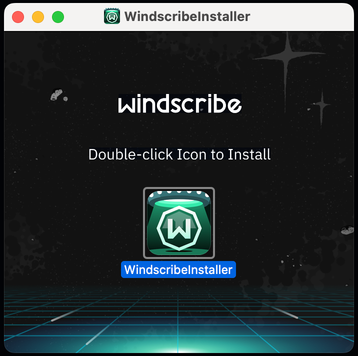
- Run the installer after it finishes downloading.
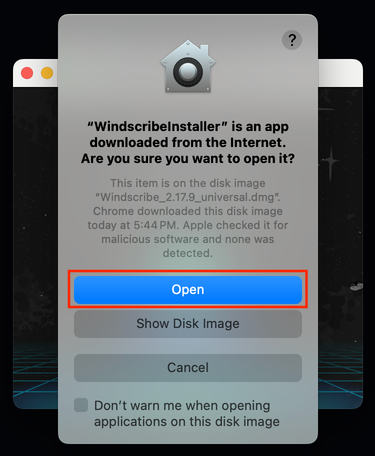
You may also encounter a prompt from your OS to open the installer itself.
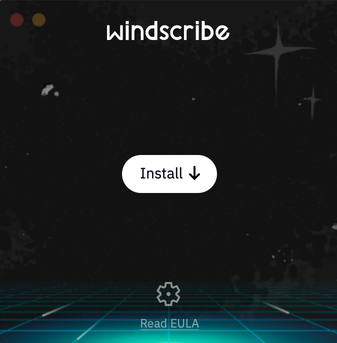
- Press the Install button and wait a few moments for it to finish.
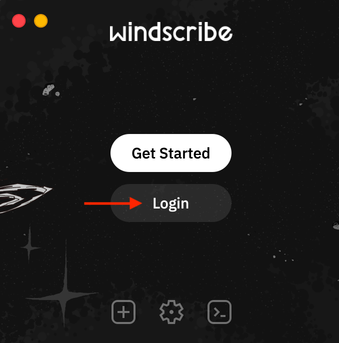
- Once installed, press Login.
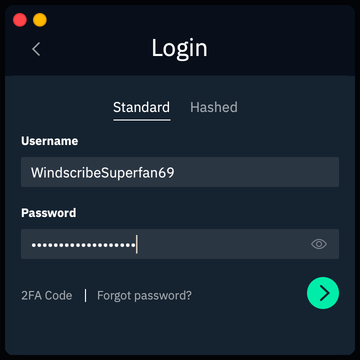
- Enter your username and password and press the green arrow to login.
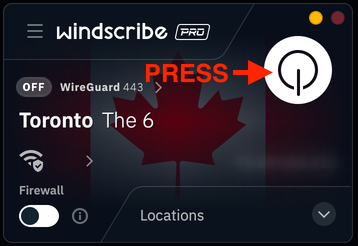
- Once logged in, you can connect by pressing the big ON button.
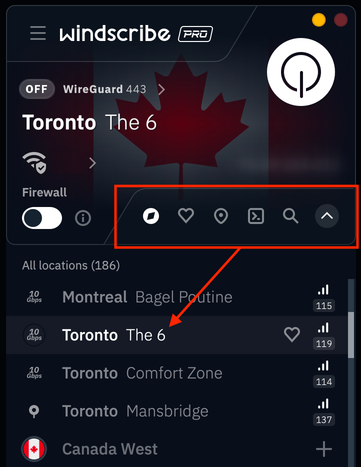
Alternately, you can expand the location list and select an available location.
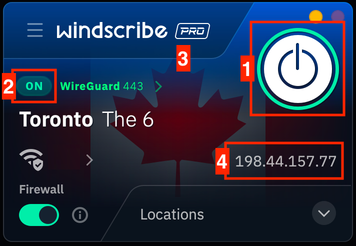
- You will know you are connected when the big ON button lights up top-right [1], you see ON in the top-left corner [2], and the app background turns blue [3]. The IP address will also change from your personal IP to the VPN IP [4]. Once you are connected, all your internet traffic on this device will go through the Windscribe servers. The websites and apps you use will see the VPN IP shown in the app instead of your own personal IP address.
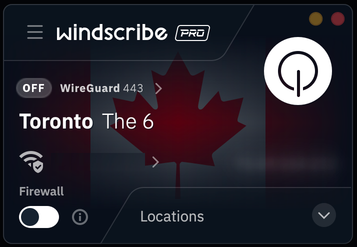
- To disconnect from the VPN, simply press the big ON/OFF button in the top right and the VPN connection will terminate.